 It’s easy to add links in WordPress. But it is important to create links that open in a new browser window and do not pull users away from your website.
Links to Websites
To insert to a link to another website in any page or post that will open in another browser window:
- Copy the URL of the website into the clipboard
- Open page or post and put curser where you want the download link
- Type message for download link and highlight this text:

- Click link in the toolbar:
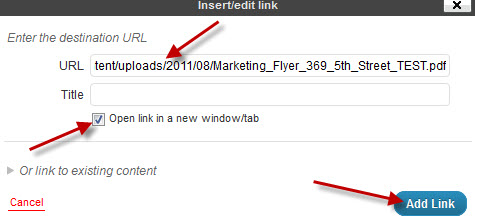
- Paste Link URL to URL, Edit the Title to what you want displayed, click “Open link in a new window/tab, and click Add Link:
Insert PDF links
To insert to a link to PDF in any page or post (will open in another browser window or download depending on the browser settings):
- Open page or post and put curser where you want the download link
- Type message for download link and highlight this text.
- Click Add Media:
- Click Select Files:
- Select files to upload
- Do the following:
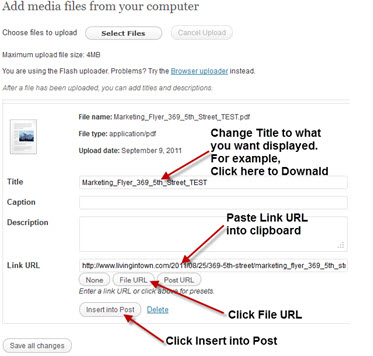
- Highlight the link.
- Click link in the toolbar
- Paste Link URL in to URL, Edit the Title to what you want displayed, click “Open link in a new window/tab, and click Add Link:
Links to in Blogroll
To link to another website in your Blogroll (usually displayed in the sidebar) that will open in another browser window:
- Click Links, Add New
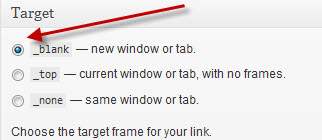
- In the “Target” box make sure “_blank” is selected:
- Click Update Link


Leave a Reply